
Open a page on your phone
On a phone, the menu is a bar at the bottom of the screen. Tap a tab to open its page.
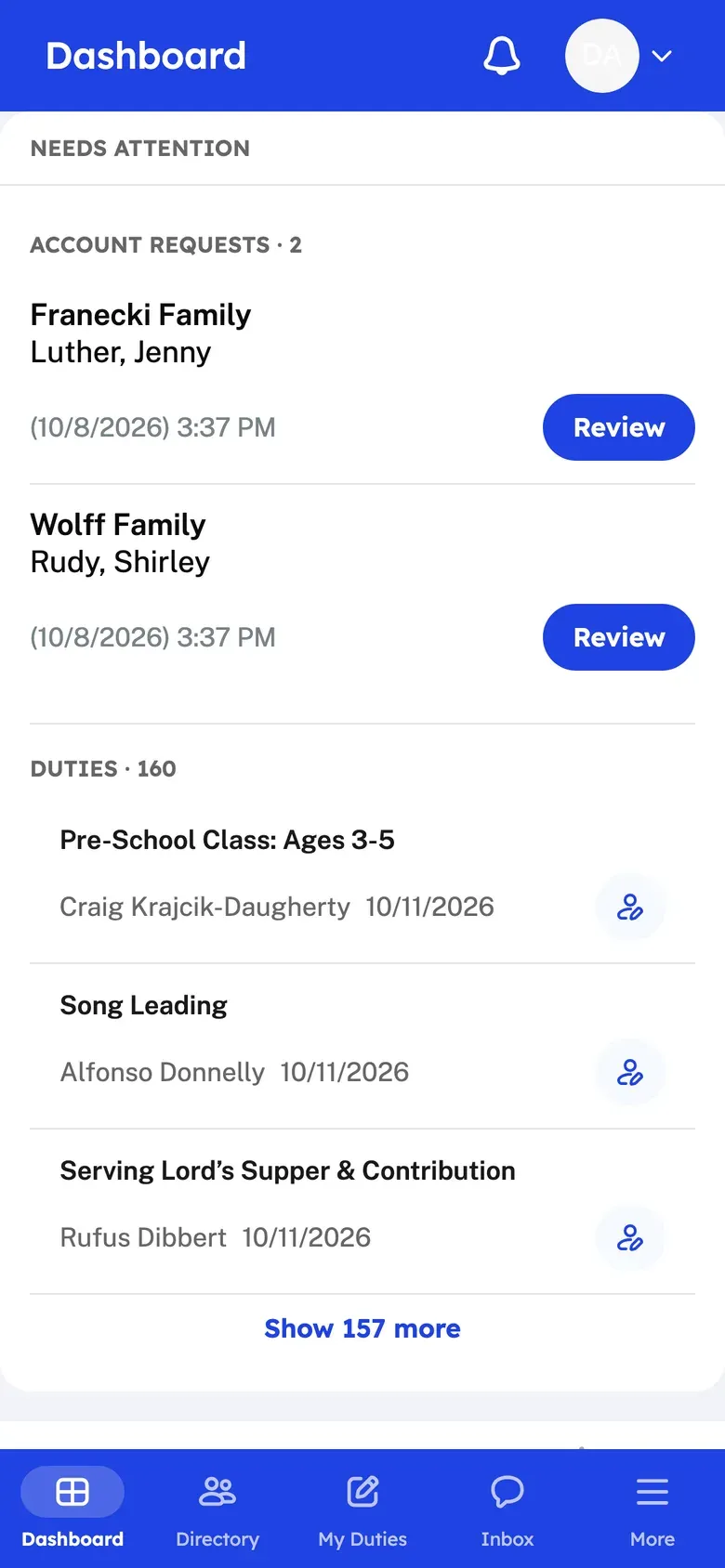
- Look at the tab bar at the bottom of the screen.
- If the page you want is a tab, tap it.
- If it is not a tab, tap More.
- Tap a menu item. Items with an arrow, such as Church Membership or Message Center, open a short list.
- Tap the page you want.
To close the menu without choosing a page, tap the X.
What the tabs open
Section titled “What the tabs open”| Tab | Opens |
|---|---|
| Dashboard | The Dashboard |
| Directory | The Member Directory. If your role cannot open it, the tab opens the first Church Membership page you can use. |
| My Duties | My Duties |
| Inbox | Your Inbox |
| More | The rest of the menu |
You see the Directory, My Duties and Inbox tabs only if your role can open those pages.
The More menu has the same items as the menu on a computer. It leaves out Dashboard and My Duties, because they are tabs, and Digital Picture Board, which works only on a computer or a TV screen. Help Guide and My Account are at the bottom of the More menu.
Use the top bar
Section titled “Use the top bar”The top bar shows the name of the page you are on. On the right it has up to three buttons.
- The bell opens Latest Notifications. Tap a notification to open it. Tap Mark All as Read to clear the unread count. Tap the gear to open Notifications Settings.
- The question mark opens a short help note for the page you are on. Tap Done to close it. Only some pages have this button.
- Your picture or initials opens a small menu with My Account Settings and Log Out.
Still stuck?
Section titled “Still stuck?”Email info@project-go.com. Tell us your church name and what you tried.
Was this page helpful?
We record searches and page feedback, with no names, emails or IP addresses, to improve these articles.